
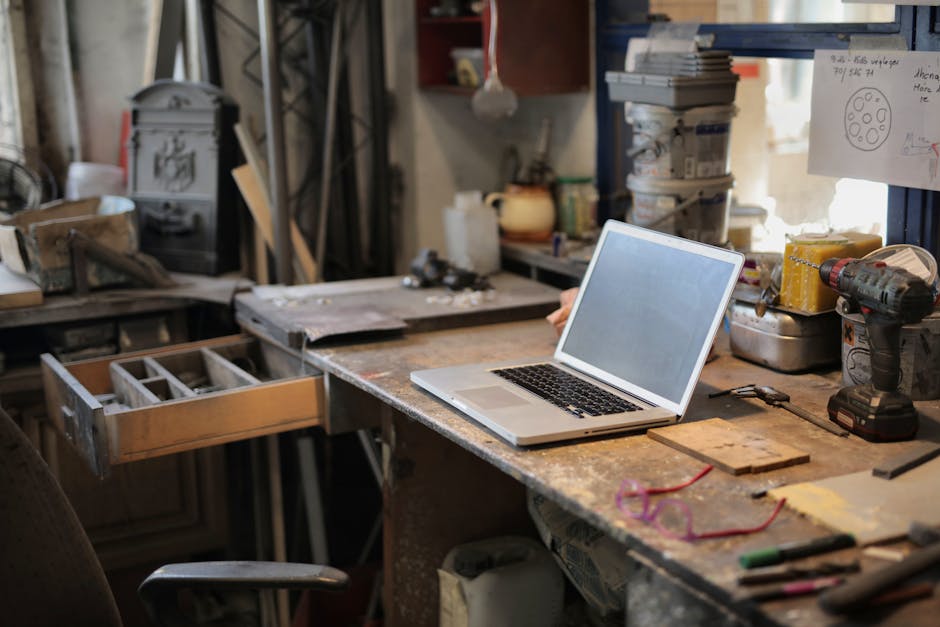
A photographer’s laptop is a mobile darkroom. Whether you are culling a wedding gallery on the road, retouching portraits in a hotel room, or running Lightroom and Photoshop side by side, the machine you choose shapes how fast and how comfortably you work. The good news is that 2026 laptops are more capable than ever, with powerful integrated GPUs, fast unified memory, and color-accurate displays now reaching well beyond flagship prices.
This guide walks through the best laptops for photo editing across budgets and platforms, what specifications actually matter for image work, and a few honest trade-offs to weigh before you buy.
As an Amazon Associate we earn from qualifying purchases. Some links in this article are affiliate links — they don't cost you anything extra.
Editor’s pick: Apple MacBook Pro 16-inch
The 16-inch MacBook Pro remains the editor’s default for good reason. Its Liquid Retina XDR display is bright, high-resolution, and factory-calibrated, the unified-memory architecture keeps large catalogs and layered files responsive, and the chassis stays quiet and cool under sustained edits. Battery life is long enough to edit unplugged for hours. If you can configure it with ample memory, it will comfortably outlast several upgrade cycles.
What to look for in the best laptops for photo editing
Start with the display. Aim for a high-resolution panel with wide color coverage; sRGB at minimum, and ideally strong DCI-P3 or Adobe RGB coverage if you print or deliver for cinema. A factory-calibrated screen saves you grief, and a matte or low-reflection finish helps in mixed lighting.
Memory matters more than raw clock speed for photographers. 16GB is a workable floor, but 32GB (or generous unified memory on Apple silicon) is where Lightroom, Photoshop, and a browser stop fighting each other. Pair that with a fast SSD of at least 1TB, because raw files and previews fill drives quickly.
A capable GPU accelerates denoise, masking, and AI-driven tools in Lightroom Classic and Photoshop. You do not need a top gaming card, but integrated graphics on budget machines can feel sluggish with heavy AI features. Finally, weigh portability against screen size: a 14-inch class laptop travels better, while a 16-inch gives you more room to retouch.
Best premium all-rounder: Apple MacBook Pro 14-inch and 16-inch
If macOS suits your workflow, the MacBook Pro line is hard to beat. The 14-inch version delivers nearly the same performance in a more portable body, while the 16-inch gives you the larger canvas. Both use the same excellent mini-LED display technology and run Adobe apps, Capture One, and DxO tools smoothly.
Best Windows creator laptop: Dell XPS and ASUS ProArt
On the Windows side, the Dell XPS family pairs a clean design with bright, color-rich displays and strong build quality, making it a popular crossover machine for editors who also want a capable everyday driver. For a more workstation-minded option, the ASUS ProArt series is built specifically for creators, often including Calman-verified color, plentiful ports, and discrete graphics that handle heavy retouching and the occasional video edit.
Best mobile workstation: Lenovo ThinkPad P-series and Dell Precision
If you edit enormous files, composite for commercial clients, or want ISV-certified reliability, mobile workstations like the Lenovo ThinkPad P-series and Dell Precision line offer professional GPUs, abundant memory ceilings, and durable chassis. They are heavier and pricier, but they are built to grind through demanding sessions day after day.
Best value: Apple MacBook Air and well-specced Windows ultrabooks
Not everyone needs a Pro-class machine. The MacBook Air with Apple silicon handles Lightroom and moderate Photoshop work remarkably well for its weight and price, especially configured with extra memory. On Windows, a thoughtfully specced ultrabook with 32GB of RAM and a good IPS or OLED display can be a strong budget editor; just confirm the panel’s color coverage before buying.
Buying considerations
Think about your whole kit, not just the laptop. Plan for an external SSD or two for backups, a USB-C hub if you choose a port-light machine, and a hardware calibration device if color accuracy is critical to your deliverables. Consider thermals and noise if you edit in quiet spaces, and remember that a slightly higher memory configuration usually ages better than chasing the fastest chip.
Frequently asked questions
How much RAM do I need for photo editing? 16GB is the practical minimum for Lightroom and Photoshop, but 32GB gives you noticeably more headroom for large catalogs, many layers, and running multiple apps at once.
Is a MacBook or a Windows laptop better for editing? Both can be excellent. MacBooks offer outstanding displays, battery life, and efficiency; Windows machines offer more configuration choice and discrete GPUs. Choose the platform that fits your existing software and workflow.
Do I need a dedicated graphics card? Not strictly, but a capable GPU speeds up AI denoise, selections, and masking. Apple silicon integrates strong graphics, while Windows editors benefit from a discrete GPU for heavy work.
What screen size should I get? A 14-inch class laptop is the sweet spot for travel, while a 16-inch gives more room to retouch comfortably. Pair either with an external monitor at your desk for the best of both.
Is OLED or mini-LED worth it for editing? Both offer excellent contrast and color. Mini-LED can hit very high brightness with great accuracy, while OLED delivers true blacks. Either is a fine choice if it has strong color coverage and good calibration.
A capable editing machine also makes light work of AI tools. If you are adding them to your workflow, see the best AI image generators and best AI video generators for photographers.
🛒 Shop the gear: Browse all storage & editing gear in our shop →